


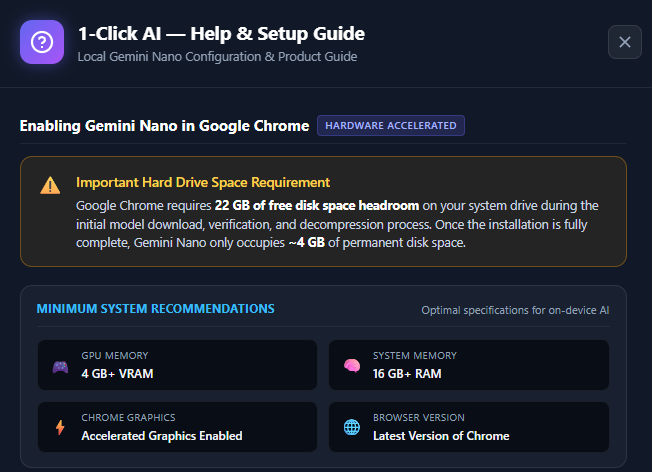
Minimum System Requirements
To start troubleshooting 1-Click AI In-Browser Assistant, the first thing is to identify whether your hardware is compatible with the Google Chrome Extension.
1-Click AI In-Browser Assistant requires specific minimum hardware specifications, these can be found within the help ‘?’ section of the plugin, along with chrome:// flags required to get the extension up and running.
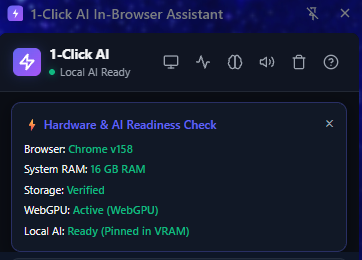
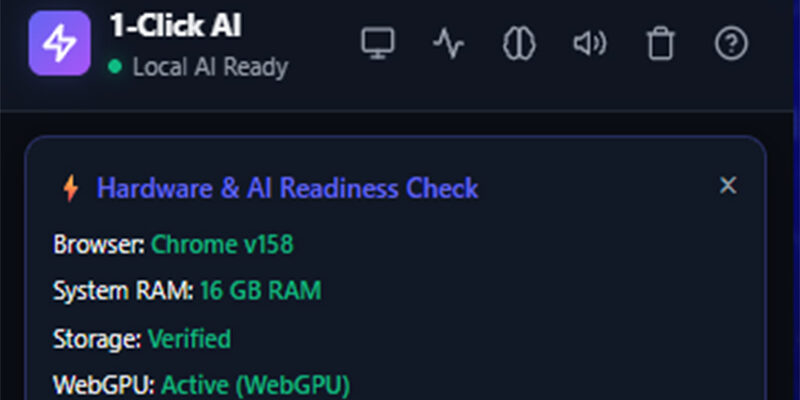
The extension’s “Hardware Readiness Check” will advise you if you fail to meet the minimum requirements.
Enabling Chrome Flags
While 1-Click AI In-Browser Assistant for Chrome web browsers is relatively straight forward to install for most users.
To ensure all models are downloaded correctly, users must ensure relevant flags are enabled within Google Chrome.
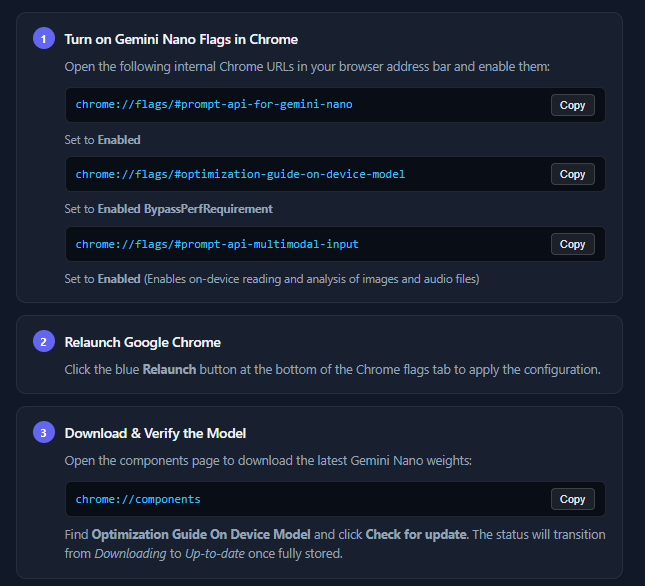
These flags can be copied directly from 1-Click AI In-Browser Extension’s help ‘?’ screen and pasted into Chrome’s URL bar, then enabled.
The help screen shows you which flags you need to enable, and how to check whether the model download and installation has been successful via (chrome://components).
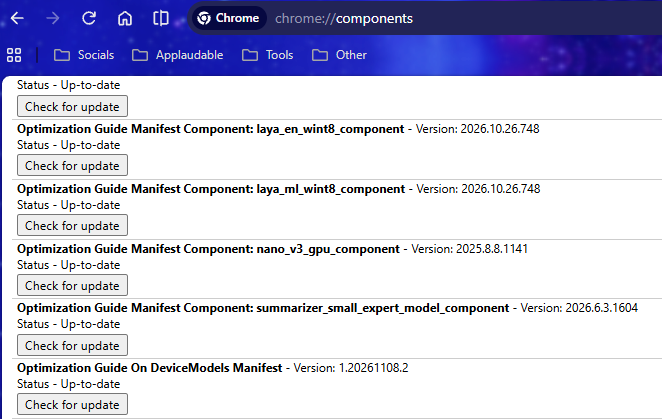
Why Users Have Different Experiences?
Some hardware configurations may result in certain behaviours, not experienced by all users.
The reason this occurs is often related to your system’s graphics drivers and chrome version configurations (including available/unavailable test features available in your Chrome build).
These differences can change the AI model loading experience for different users.
Also, installed models scale based on your systems performance as determined by Chrome (not us).
Some will experience almost instant loading of the local model from their GPU cache, while others may experience delayed initialization.
This is often only experienced during initial startup of Chrome and the extension.
Once the model is loaded, AI responses will fell almost instant for most users.
For some users, closing chrome and opening it again, will see their local AI model loading from cache quite quickly (usually within 30-60 seconds), while others may experience that longer 4-7 minute delay again.
While the GPU cache is usually enabled/disabled by your Chrome’s manifest, there are a couple of things you can try to improve performance.
Troubleshooting 1-Click AI Model Load Times
Google chrome may disable the GPU weight cache based on the system specification it identifies during load.
e.g.\components\optimization_guide\core\model_execution\manifest_broker\manifest_solution_factory.cc(697) Loading model [nano_v3_gpu_high_tier_model] on backend [GPU], max tokens [0]; model cache files [exist], GPU weight cache [disabled], GPU program cache [enabled]
This is the primary cause of longer model load times experienced by some users.
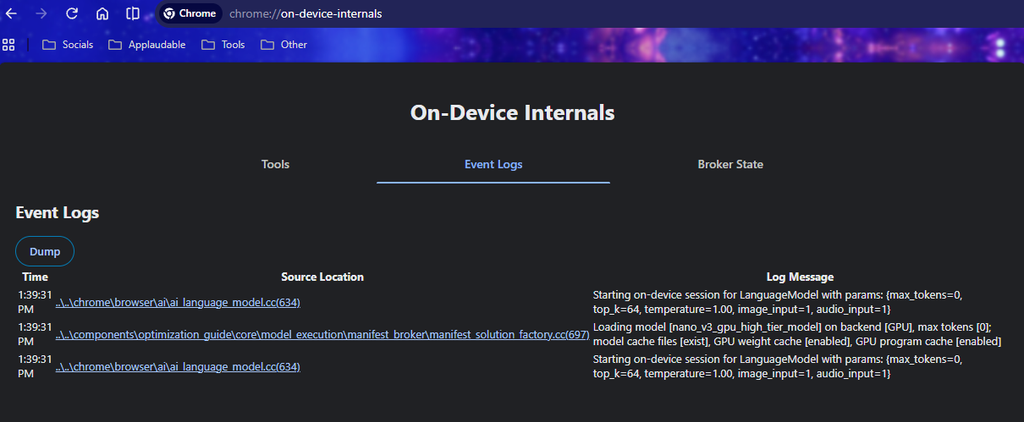
You can determine if this is disabled within your own chrome browser by looking at the chrome://on-device-internals “Event Logs” when first loading the extension.
If yours shows as [disabled], this is the most likely cause for slower on-device AI model load times in Chrome.
One way you can attempt to enable it is via Chrome’s launch properties related to the shortcut you use to launch chrome.
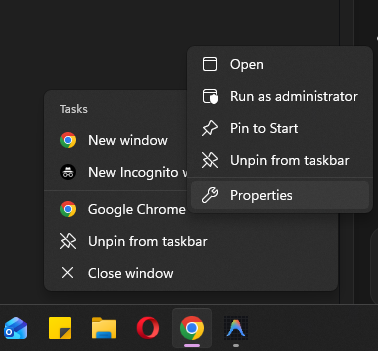
By adding the following flag to the end of the target inside of your Chrome’s shortcut properties.
--enable-features=AIPromptAPI,AIPromptAPIMultimodalInput,OnDeviceModelGpuWeightCache
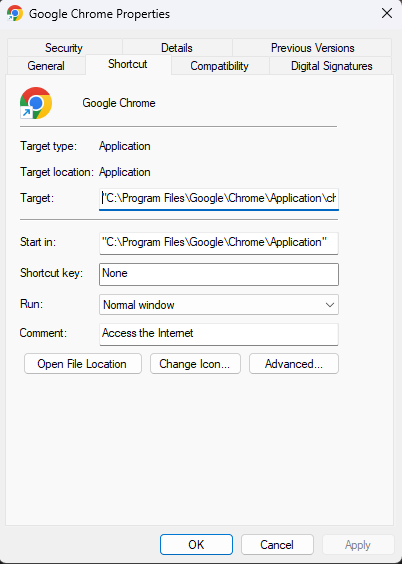
E.g on windows, your target would read eg. C:\Program Files\Google\Chrome\Application\chrome.exe” –enable-features=AIPromptAPI,AIPromptAPIMultimodalInput,OnDeviceModelGpuWeightCache
This forces the GPU weight cache [enabled], and then may result in..
1) The model loads from cache, greatly reducing initial wait time, or 2) The reponse time to queries significantly improves, or both.
If the flag does not improve the initial load time, it will still likely boost inference, as the GPU execution pipeline will be fully optimized.
To try to reduce wait times for the model loading, we have added a background loading service to help warm-up the AI.
1 Thing to be Aware of…
When troubleshooting 1-Click AI In-Browser Assistant, some of the local AI implementation for Google Chrome is still experimental, and Google may deprecate or modify the way in which it provides access to certain on-device AI features.
Google may also [enable] the GPU cache loading in future updates of your Chrome extension, without the need for you to do anything.
Or, Chrome update manifests may update or remove AI capabilities, particularly where bugs are known to exist.
While we endeavour to stay ahead of changes made before Chrome updates, we cannot guarantee features will not break due to such updates.
We also cannot confirm devices will always remain compatible with 1-Click AI In-Browser Assistant, due to changes to drivers during GPU driver updates.
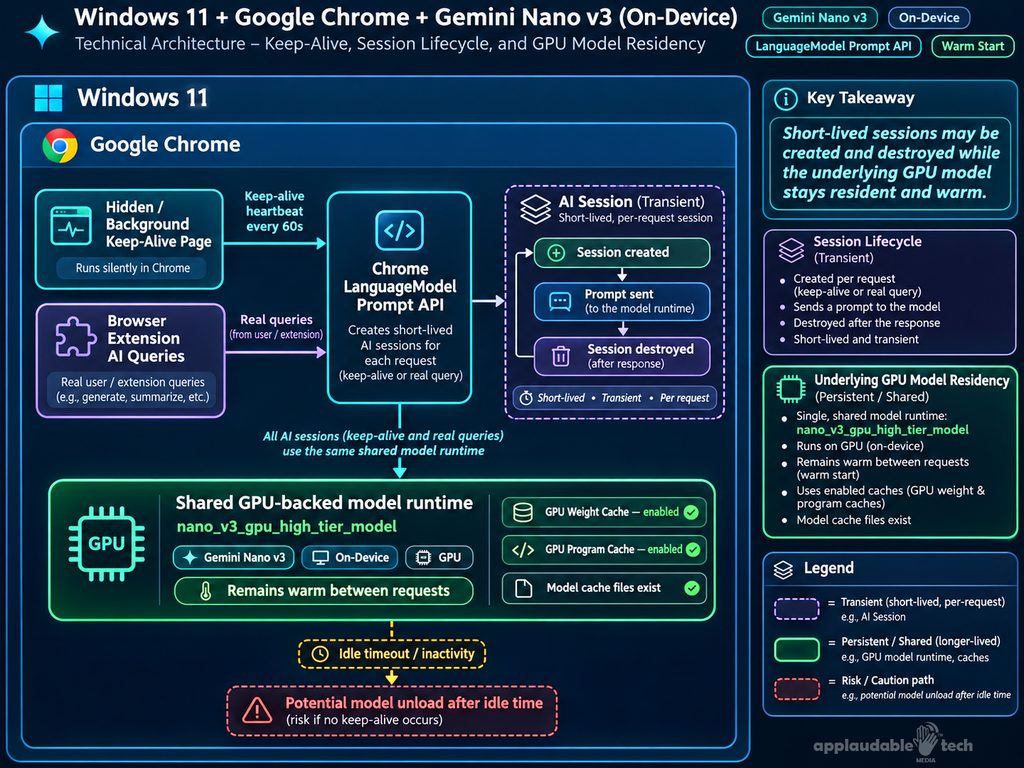
For those experiencing slower initial load times due to GPU cache disablement, we work to ensure our extension has been engineered so even if your very first initialization after starting Chrome takes a few minutes during the local shader and memory allocation, all subsequent interactions while Chrome is open will feel instant, once the model is “Warmed Up” i.e. loaded into the GPU’s VRAM, and as long as Chrome stays open.
We will endeavor to continue to keep troubleshooting 1-Click AI information up to date, as versions continue to roll out.
To get this extension visit the Chrome Web Store HERE.
[…] Assistant from the Chrome Web Store and need to troubleshoot the extension, please visit: Troubleshooting 1-Click AI In-Browser Assistant […]